Workspaces & panes
Organize the sidebar, work across panes and the main checkout, tag and filter workspaces, and use the Command Center.
This picks up after Getting started — install, first project, first workspace — and covers the rest of day-to-day work across the sidebar, panes, tags, and the home screen.
Organize the sidebar
Right-click a workspace row for Rename…, Move to folder (with Create new folder… at the bottom of the submenu), and Archive…. Drag a row — or a folder, or a whole project — by its grip handle to reorder it; each list also supports keyboard reordering: Tab to the grip handle, press Space to pick it up, use the arrow keys to move it, and press Space again to drop it.
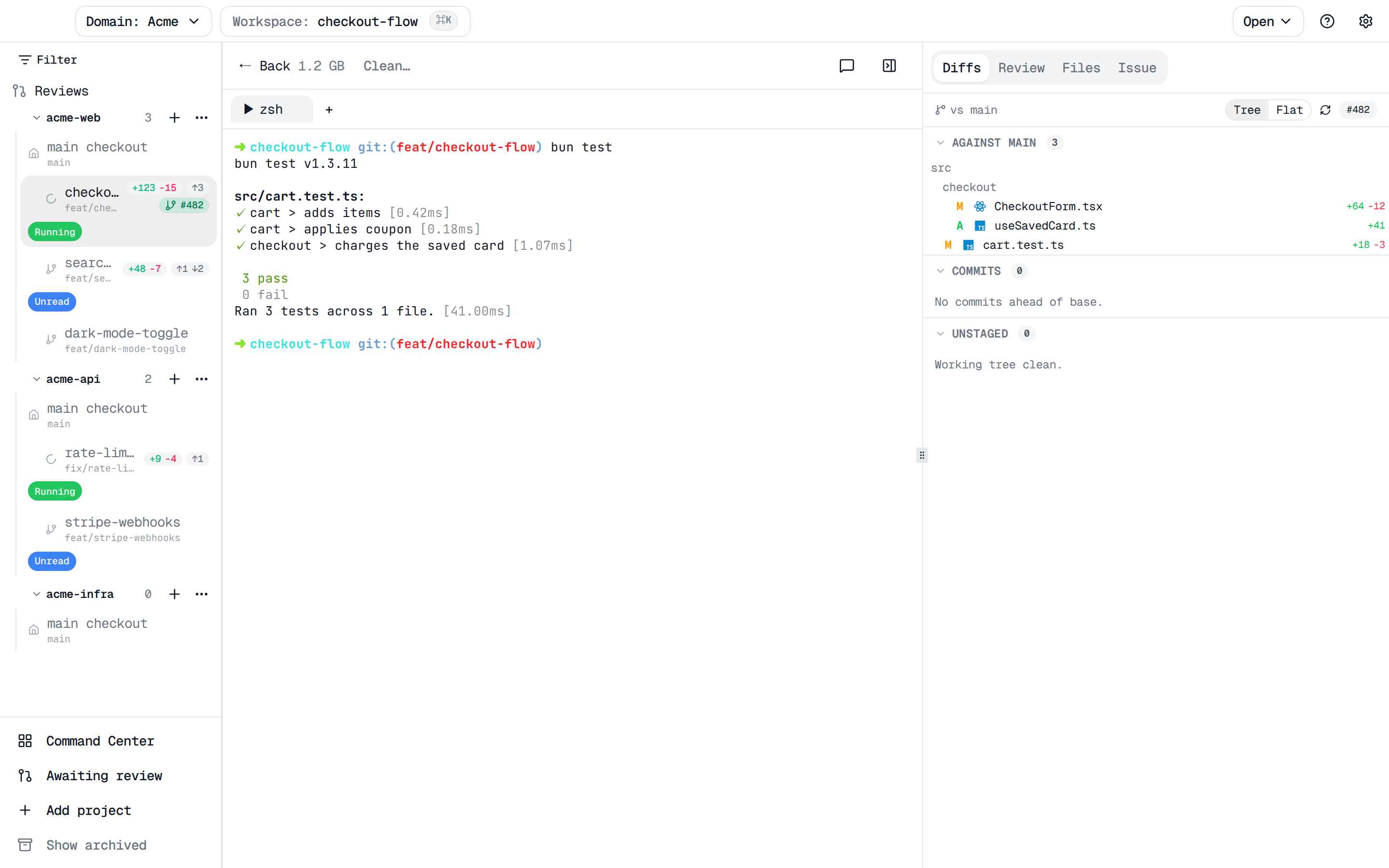
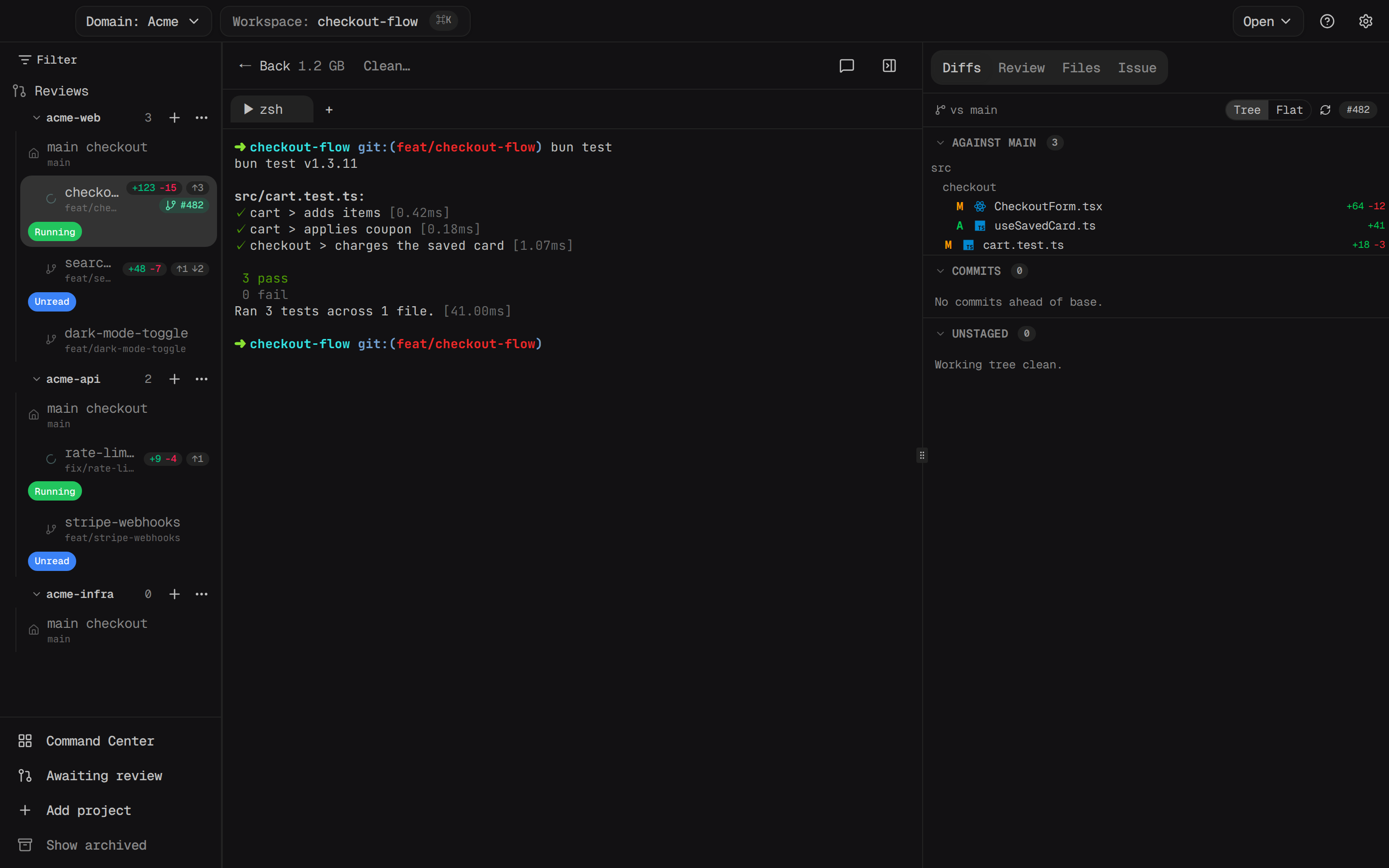
A workspace row grows a +N/-N diff badge and an ↑N/↓N ahead/behind
badge, both measured against its base branch, as soon as it has any changes;
a clean, in-sync workspace shows neither.
Panes and tabs
Right-click a pane's tab for Rename, Duplicate (mints a fresh pane of the same kind), and Close, alongside a Tags submenu (see Tags below). A script-run pane's tab also offers Move to script runs, sending it to the script-runs dock — see Scripts → Run a script in a workspace. If a terminal ever stops updating, its tab shows a Redraw entry to force a redraw without losing scrollback.
A background daemon holds your terminal sessions independently of the app, so panes normally survive quitting and reopening Skein; if the daemon can't start, Skein falls back to running shells in-process, and those close along with the app.
The main checkout and quick chats
Expand a project in the sidebar and its main checkout appears as the first row, above its worktrees — the project's own working directory rather than an isolated workspace. It shows the default branch and an ahead/behind badge, has no drag handle and no archive or folder menu, and its row picks up a pulsing activity dot while a chat or terminal is running there (activity in a workspace doesn't light it). Opening it shows a banner reading "Main checkout — changes affect the repo directly. Prefer a workspace for exploratory changes.", with a Dismiss button that hides it for the rest of the session.
Quick chats
Click the message-square icon in a workspace's top bar (Open quick chats) to open the Quick chats rail. New starts a chat, expanded inline; expanding a different row collapses the current one. On an expanded row, Keep promotes the chat into a permanent tab on the project's main checkout; Done deletes it, asking "Delete this quick chat?" first unless it's still untitled. Quick chats expire a week after they're created unless you Keep them.
Tags
Right-click a workspace row or a pane's tab and open its Tags submenu to check or uncheck any user tag. Manage tags…, at the bottom of that submenu, opens the Manage tags sheet: create a tag with a name and one of eight colors, scoped Global (every project) or Only in this project; rename, recolor, or delete an existing one there too. A separate, fixed set of system tags is computed automatically and can't be created, renamed, or deleted — grouped in the sidebar filter as Status (CI Failing, Conflicts, Mergeable), PR (Code Review, From PR, PR Comments, Linked), and Activity (Running, Waiting, Action Needed, Notification, Unread), plus a per-project Project Name and per-domain Domain Name facet. Settings → Tags lists all of them.
Tags on a workspace and tags on its panes both count toward that workspace:
tag a single pane and the workspace still shows up under that tag everywhere
tags are used, including the Command Center. A tagged row
shows up to three chips plus a +N overflow chip.
The Filter control above the sidebar's workspace list narrows it to workspaces carrying every tag you've selected; clear one by clicking its chip again, or Clear all to reset. Settings → Tags is separate — it only controls which tags render on sidebar rows (and lets you pin one), without changing what's assigned.
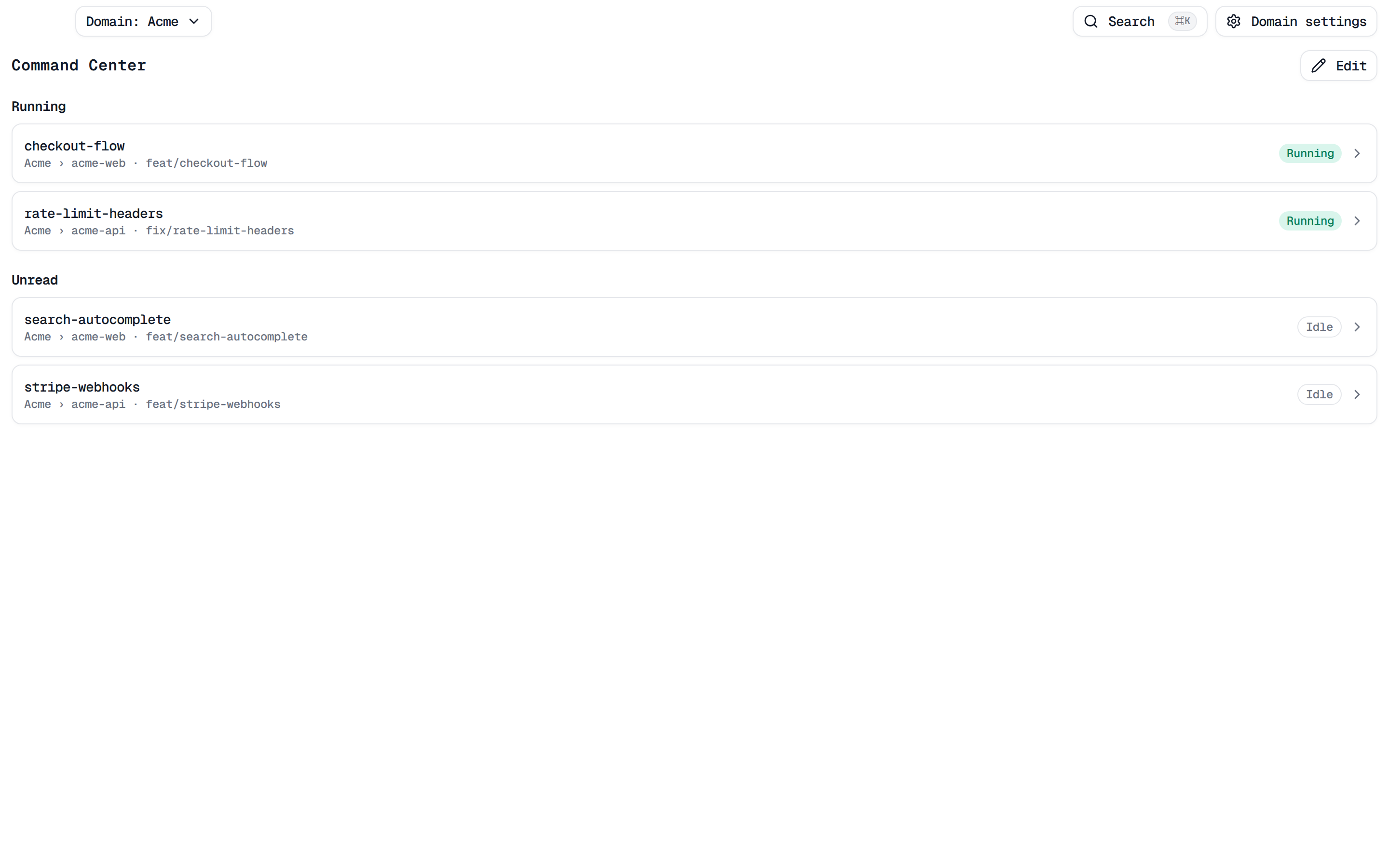
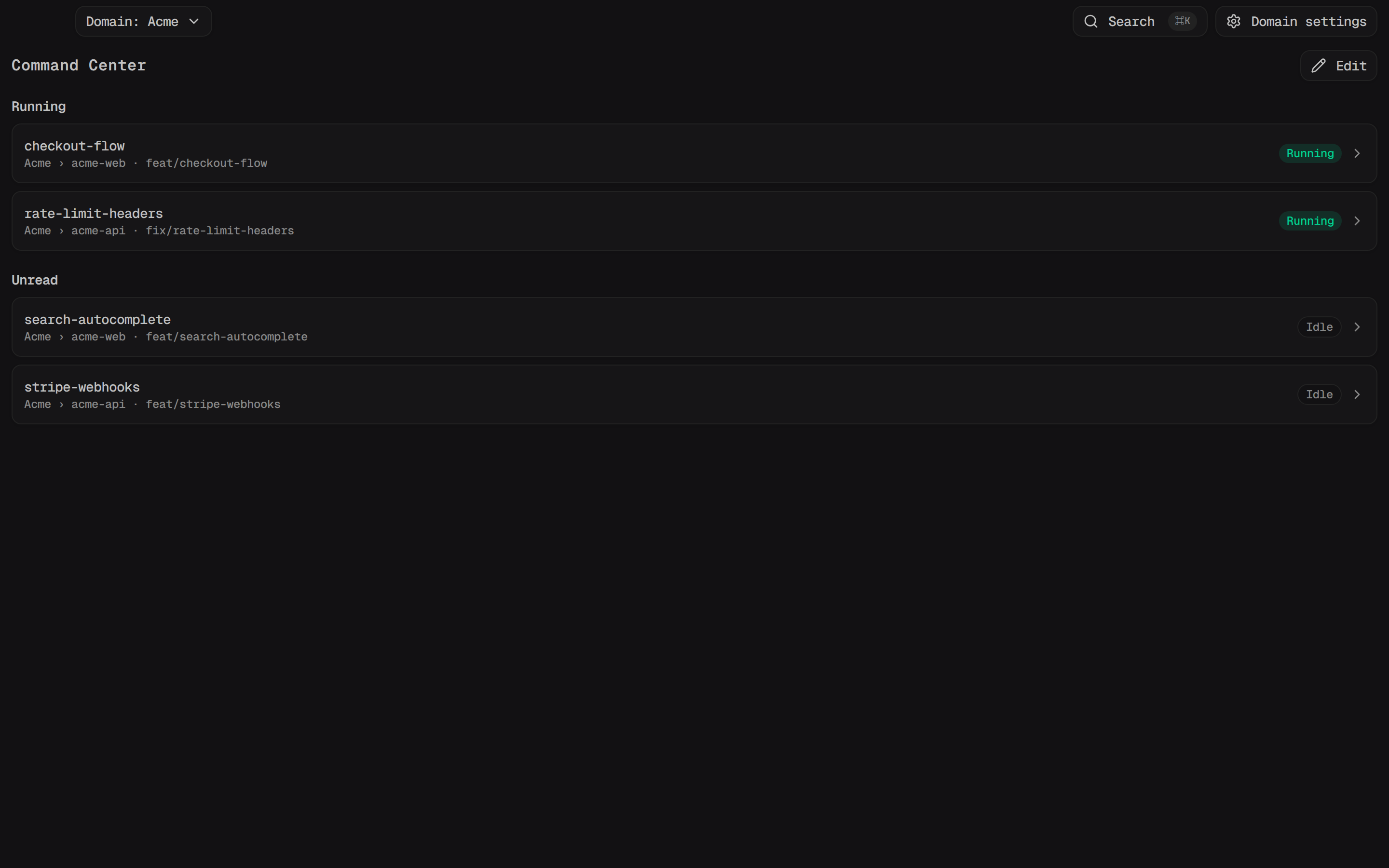
Command Center
The home screen groups workspaces into sections by tag. Click Edit to rearrange the layout — each section grows a Tag: <name> control to retarget it, an eye icon to toggle hide-when-empty, up/down chevrons to reorder, and a delete icon; a title field lets you rename it. Add section opens a picker over your system and user tags to add another. If a section's tag has since been deleted, it stays in the layout with a "Tag no longer exists." notice instead of disappearing.
Disk usage and cleanup
A workspace's top bar shows its gitignored disk usage next to a Clean…
button, disabled when there's nothing to remove. Clicking it opens Clean
build artifacts, listing every gitignored directory and its size — files
ignored individually, like .env, are left alone. Confirming removes them
and shows how much space was freed before you Close the dialog.
If a workspace's directory disappears outside Skein (deleted by hand, or via
git worktree remove), the project's settings page grows a Missing on
disk section listing its name, branch, and path. Re-scan checks again
immediately (recreating the directory also clears it automatically on the
next app launch); Purge permanently deletes the workspace's row, panes,
terminal history, and chat sessions.
Archive a workspace
Right-click a workspace row and choose Archive… to remove its working directory — the branch stays in the repo, and any chat sessions are kept so you can pick them back up after unarchiving. The same dialog has a Force remove worktree, discarding any local changes checkbox; check it if a previous archive attempt failed because the worktree had uncommitted changes. An archived row's context menu offers Unarchive to bring it back. Skein has no separate delete action for an active workspace — Archive is the way to retire one, and Purge (above) only applies once a workspace is already missing on disk.
Archive many workspaces at once
Right-click a project in the sidebar (or open its ⋯ menu) and choose Clean up workspaces…. The dialog lists the project's workspaces stalest first, ranked by last activity: the latest of terminal typing, chat activity, the branch-tip commit, and the workspace's creation. Each row shows its PR status, diff size, ahead/behind counts, and age, so you can tell what is safe to drop.
Tick rows by hand, or use the quick-selects:
- Merged / closed PRs — selects workspaces whose pull request is merged or closed.
- Inactive > 14 days — selects workspaces with no activity for over two weeks.
The quick-selects stay disabled until last activity has loaded.
Then confirm with the Archive button, which shows how many workspaces it will archive. The footer also totals the terminals and chats in the selected workspaces that archiving will close, and updates as you change the selection. As with a single archive, branches stay in the repo.
The dialog closes as soon as you confirm. Archiving carries on in the background behind a notification that counts up ("Archiving 3/8 workspaces…") and then reports the result. Each workspace leaves the sidebar as it is archived.
A workspace with uncommitted changes is refused rather than discarded. The dialog checks for this when it opens: affected rows are marked Uncommitted changes, and the footer warns how many selected workspaces will be skipped. To include them, check Force: discard uncommitted changes in selected worktrees; the button then reads Force archive N workspaces and is styled as destructive. The checkbox applies to every selected worktree, so review the selection first.
If any workspaces weren't archived, the final notification names them and offers actions. Force archive N… reopens the dialog with the workspaces that had uncommitted changes selected and Force checked, so you can review them before discarding their changes. Retry N runs the archive again, without Force, for workspaces that failed for another reason. When both kinds of failure happen, the notification shows both buttons.
To do the same from a shell, see
skein archive.