Scripts
Define project and global scripts, run them in a workspace, and invoke them across a domain.
Add a project script
Open a project and click the ⚙ next to its name (Project settings). In the Scripts section, click + Add script and choose Shell step or Copy-files step — the dialog opens as New script (or New copy-files step).
Fill in:
- Name
- Kind — setup (auto-runs on create/unarchive), run, or custom.
- Command — the shell command to run. Wrap a placeholder in double
braces, e.g.
bun run test -- --grep "{{pattern}}", to prompt for a value each time the script runs (see Run a script in a workspace). - Ports (0–16) — how many
SKEIN_PORT_*slots to lease for this script's pane (see Environment variables). - Allow multiple instances — "Launch a new pane each time instead of focusing the running one." Off by default, so re-running a script refocuses its existing pane.
Copy-files steps
A setup-kind script can use Copy files instead of Shell — a
toggle further down the dialog, below the Globally invokable checkbox. It
copies files into the workspace instead of running a command, and skips
the Command, Ports, and argument fields.
Run a script in a workspace
In a workspace, click the tab strip's + button and pick New terminal,
or open the Scripts submenu below it to pick a script by name. Each entry
shows a [kind] tag for a project script or a Global badge for a global
script, plus a port count when the script leases any.
Running a script opens a new tab in the strip (marked with a ⚡ icon) with its own output pane, just like a regular terminal.
If the script's command has a {{placeholder}}, running it opens a
Run "<name>" dialog first, with one field per placeholder. A
placeholder's field renders as:
- a plain text input, for a free-text argument;
- a combobox of options, for a manual list or a generated list (with a refresh button to re-run the generator); picking Other… switches it to a text input with a ← back to options link;
- a plain text input, if the generator failed or timed out — this emergency input always renders, even when the free-text fallback isn't allowed.
Click Run script to submit.
Setup scripts run automatically
A setup-kind script runs automatically when a workspace is created or
unarchived — no need to trigger it from the Scripts submenu. Its output
appears as an ordinary terminal pane in that workspace, tagged with the same
⚡ icon as a manually-run script.
While setup scripts run, the workspace's row in the project's workspace list shows a status badge next to its name: setup: running N/M while scripts are in flight, setup: ✓ once they all succeed, setup: failed or setup: timed out if one doesn't, or setup: cancelled. A failure aborts the remaining chain — later setup scripts don't run.
Environment variables
Every script's pane gets these variables, built from the project and (for a workspace-scoped run) the workspace it's running in:
| Variable | Set when | Value |
|---|---|---|
SKEIN_DOMAIN | always | the domain's name |
SKEIN_PROJECT | always | the project's name |
SKEIN_PROJECT_PATH | always | the project's checkout path |
SKEIN_WORKSPACE | run in a workspace | the workspace's name |
SKEIN_WORKSPACE_PATH | run in a workspace | the workspace's worktree path |
SKEIN_GH_LOGIN | domain has a GitHub account | that account's login |
SKEIN_PORT_1 … SKEIN_PORT_N | the script's Ports is > 0 | one leased port per slot |
SKEIN_ARG_<NAME> | the script has a {{name}} placeholder | that placeholder's argument value |
CLAUDE_CONFIG_DIR | domain sets a Claude config dir | that directory |
GH_TOKEN, GITHUB_TOKEN | domain has a GitHub account with a token | that account's token |
Running a script from a project's main checkout (not a workspace) sets
SKEIN_PROJECT_PATH but not SKEIN_WORKSPACE or SKEIN_WORKSPACE_PATH.
A {{name}} placeholder's value is available two ways: substituted directly
into the command, and separately as SKEIN_ARG_<NAME> — the placeholder
name, uppercased, with any - replaced by _ (so {{db-name}} becomes
SKEIN_ARG_DB_NAME).
Global scripts
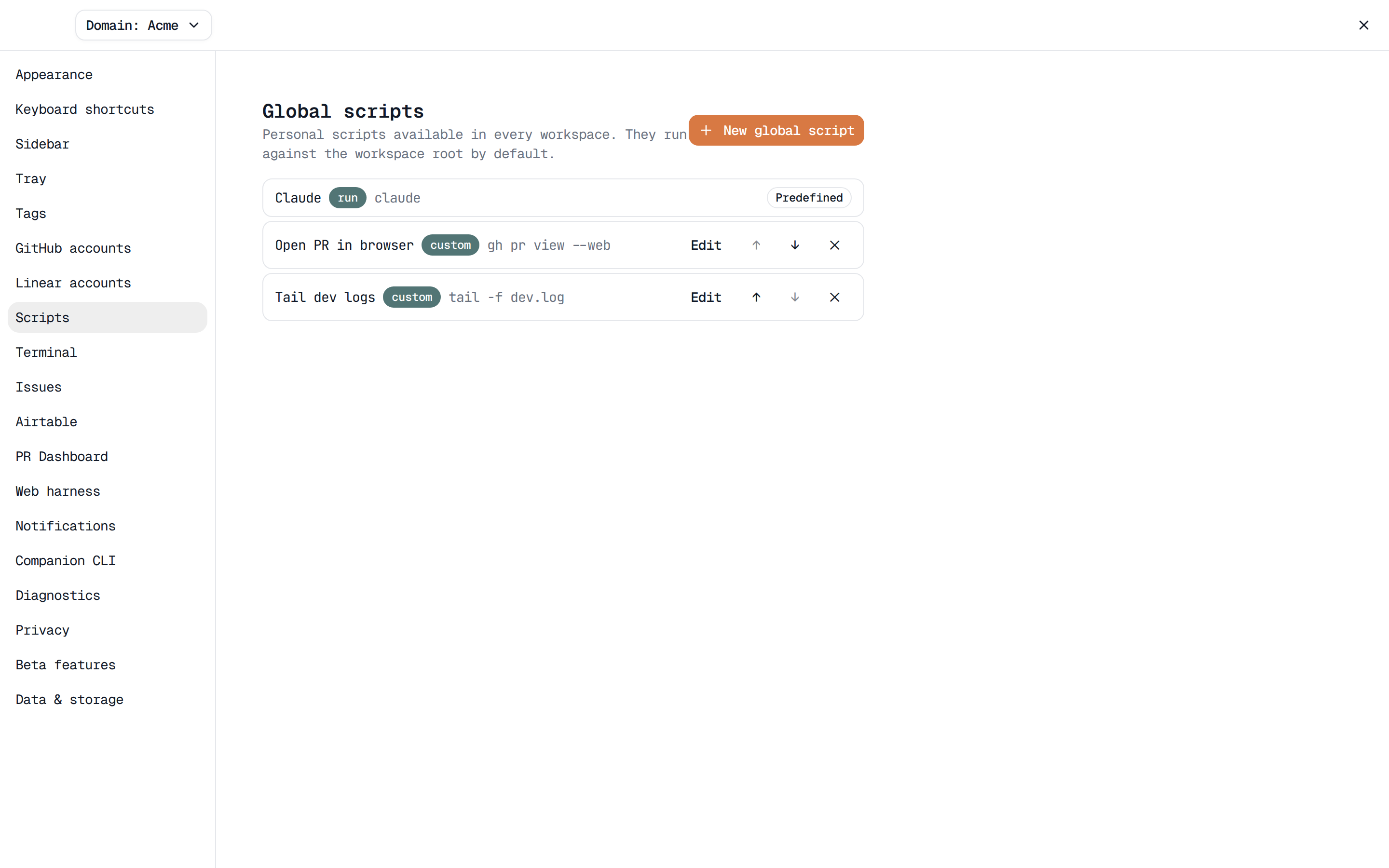
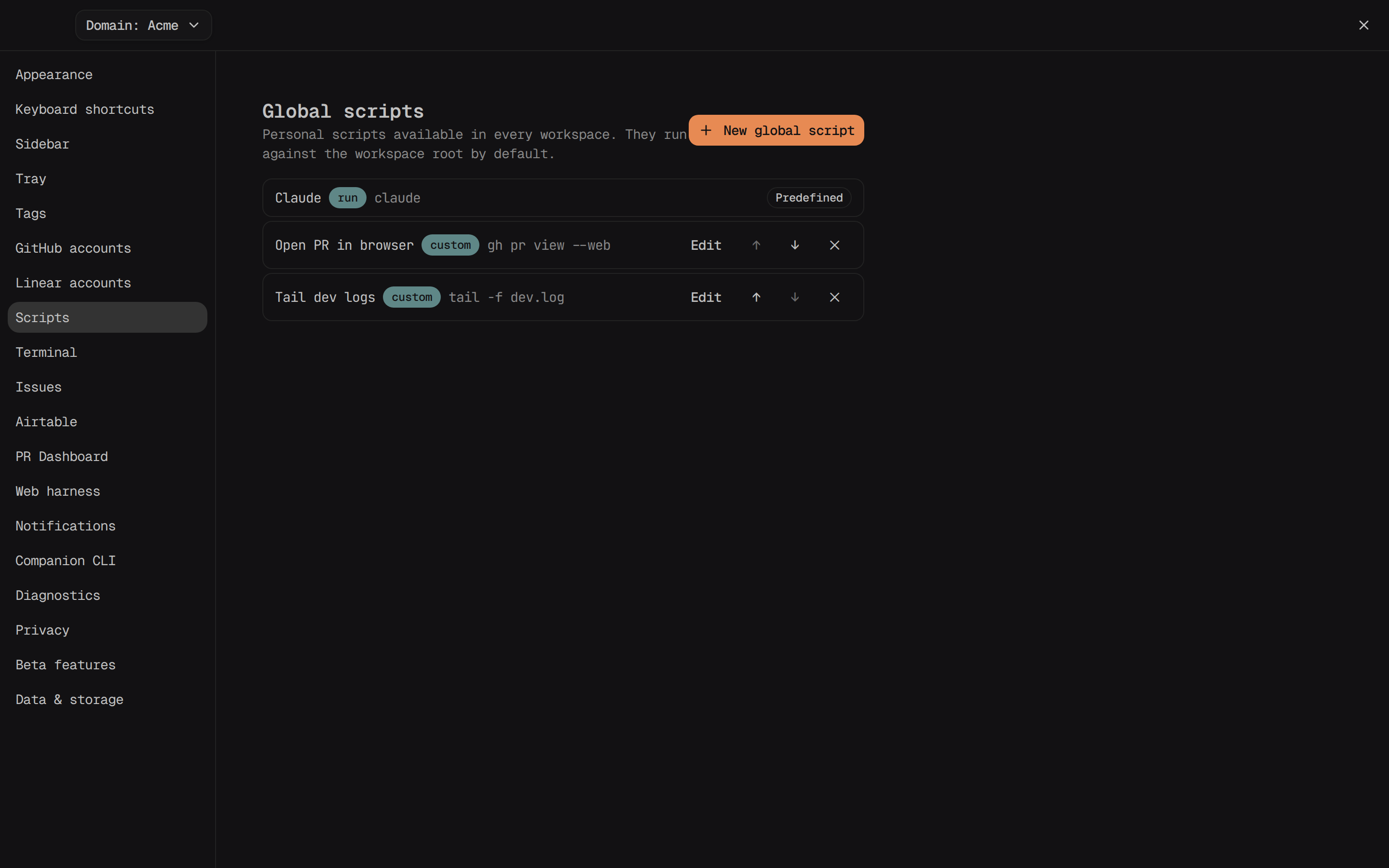
Settings → Scripts always leads with a predefined Claude entry
(badged Predefined) that launches claude right away with no run
dialog — it can't be edited, reordered, or deleted. Skein still appends any
Claude launch flags set at Settings → Issues (see Issue trackers →
Set issue-open defaults).
Below it are your own personal
scripts, available in every workspace regardless of project. Click New
global script — the dialog has Name, Command, Kind, Ports,
and Working directory (blank defaults to the workspace root; ~ expands
to your home directory, and a relative path resolves against the workspace
root). A global script is always a shell script, and it's always runnable
everywhere — there's no project picker and no globally-invokable toggle to
set.
A workspace's Scripts submenu shows global scripts in their own Global section below the project's own scripts.
Globally invokable scripts
A project script's edit dialog has a Globally invokable checkbox: "Show this script in the domain Scripts view and command palette." Turn it on and the script also shows up outside its own project.
Once at least one project has a globally invokable script, a Scripts link
appears in the sidebar under that domain, opening /domains/<id>/scripts.
That page groups those project scripts by project, each with a Run
button. Running one from there opens the same argument dialog described
above; on success a toast reads "Started <script> in <project>"
with a Show output action that jumps to the project's main checkout with
that pane focused.
The same page also lists your global scripts (badged Global) below the per-project ones, for reference only — they have no Run button there, since a global script is already runnable from inside any workspace (see Global scripts).