Issue trackers
Connect GitHub Issues, Linear, or Airtable, and start a workspace straight from a tracked issue.
Start a workspace from an issue
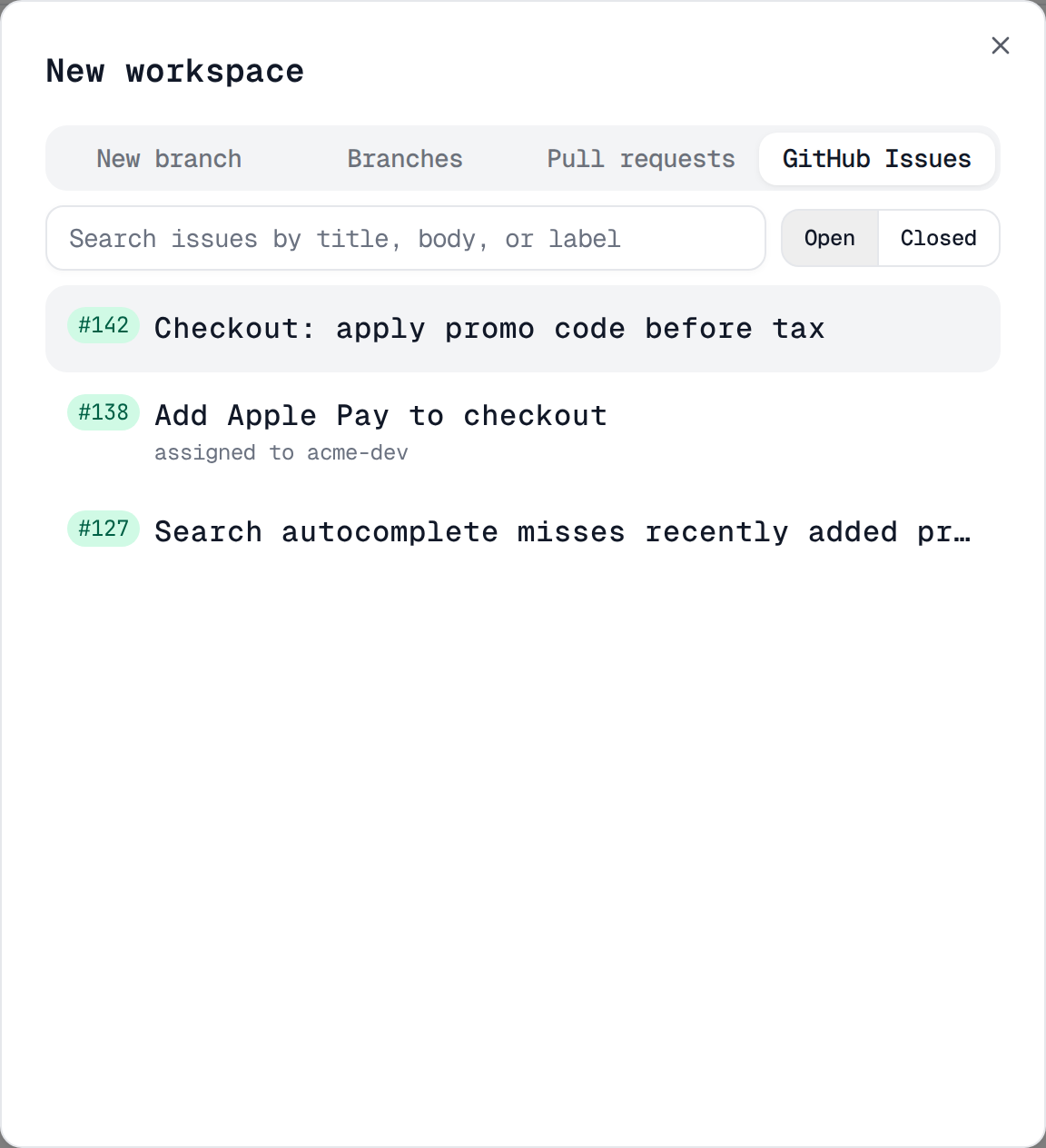
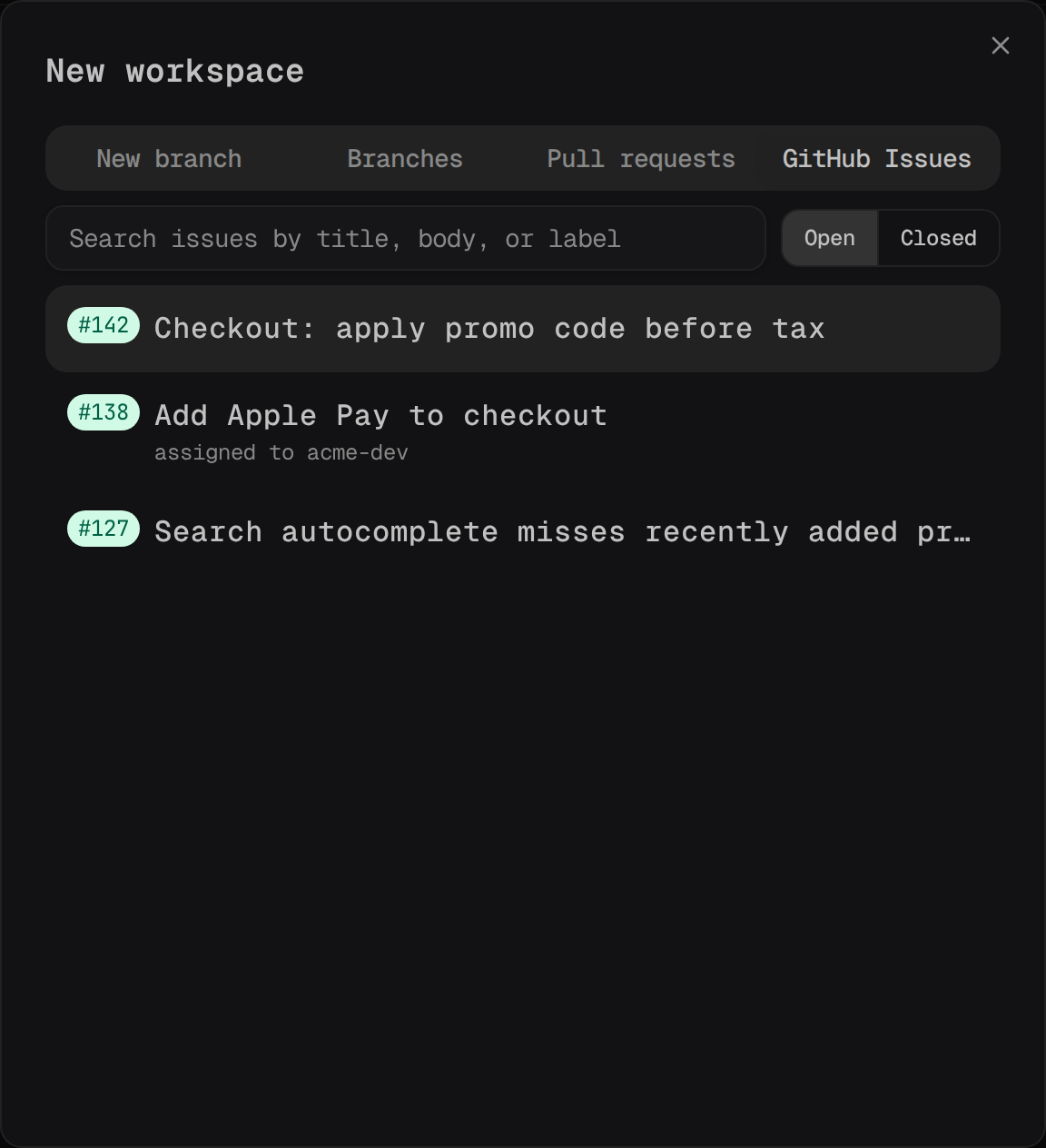
Open the New workspace dialog (see Getting started → Create a workspace) and switch to whichever tracker tab the project has configured: GitHub Issues, Linear, or Airtable Records. Each tab lists that tracker's issues with a search box and its own filters; clicking one creates the workspace immediately, naming it and its branch after the issue.
Once created, the workspace's Issue tab (alongside Diffs, Files, and Review in the right-hand panel) shows the linked issue: its number or identifier, title, a status pill, an Open button (to view it on the tracker), Refresh (re-fetch from upstream — the "Last refreshed" footer resets to "just now"), and Unlink. A workspace not created from an issue shows "No linked issue." with a Browse issues link that opens the same pickers in a Link an issue dialog.
Link more than one issue
A workspace has one primary issue, which names the branch and fills
{id} in the skill template, plus any number of linked issues. Below
the primary card, Also linked (N) lists the rest:
- + Add (the Add button) opens the issue picker. Issues that are already linked are disabled.
- The star (Make primary) promotes a row; the old primary stays in the list. Replace… on the primary card swaps it for a picked issue the same way, and Unlink clears it without promoting anything else.
- Open shows the issue on its tracker, and Remove unlinks a row.
- Issues that your PR body references (
#123,Closes #123) appear automatically with a from PR chip. They have no Remove button — edit the PR to drop them. Only GitHub issues from the project's issues repo are picked up this way.
The sidebar shows +N next to a workspace with N extra issues. The phone
web harness has the same controls.
In a skill template, {id} is the primary issue and {ids} is every
linked issue, primary first, separated by spaces (for example
/taking-on-issue {ids} becomes /taking-on-issue #12 ENG-4). Set it in
Project settings under Skill template for new chats from an issue.
GitHub Issues
GitHub Issues reuses the domain's GitHub account — see GitHub & PR inbox →
Connect a GitHub account
for that one-time setup. The only thing left is which repo to browse: Skein
detects it from the project's git remote automatically. To browse a
different repo (or set one when detection fails), open Project settings and
use the GitHub Issues repo picker — pick a suggested owner/name (the
one matching the remote is marked "(detected)"), or type owner/name and
click Set.
On the GitHub Issues tab, toggle Open / Closed, or search by
title, body, or label. Selecting an issue names the workspace after its
title (or Issue #<number> when the title is blank) and its branch
issue-<number>-<slug>.
Linear
Connect an account at Settings → Linear accounts → Add account. In the Connect a Linear account dialog, click Open Linear to create a Personal API key at linear.app/settings/api (or Copy link to grab the URL yourself), paste it into Personal API key, and click Connect. Pick that account for the domain from Domain settings' Linear account field, then bind a project to one of its teams in Project settings: pick a Linear workspace, then a Linear team, and click Save.
On the Linear tab, toggle Open / Closed, or click the user-icon
button (title "Show only issues assigned to me") to filter to your own
issues. Selecting an issue names the workspace <identifier> <title> (for
example "LIN-7 Fix login redirect"). Its branch follows Linear's own
branch-naming template when the API returns one for the issue; otherwise, if
the Linear organization has its own branch-format template configured,
Skein applies that template with the issue's identifier and title; failing
both, it derives <username>/<identifier>-<slug> from your account name.
Airtable
Connect an account at Settings → Airtable → Connect Airtable
account (or Connect another Airtable account once one exists), using
a Personal Access Token from airtable.com/create/tokens. In the same page's
Profiles section, click Add profile to map a base, a table, and
(optionally) a status field and an assignee field — the fields that power
the tab's filters. Pick that account for the domain from Domain settings'
Airtable account field, then bind a project to one of its profiles in
Project settings under Airtable: pick a Profile (only profiles
belonging to the domain's Airtable account are listed), set a Branch
prefix (for example task), and click Save.
On the Airtable Records tab, a status chip (shown only when the profile
maps a status field) filters records by rolled-up state, and a user-icon
button (shown only when an assignee field is mapped; title "Show only
records assigned to me") filters to your own records. Selecting a record
names the workspace after its title and its branch
<username>/<branch-prefix>-<slug>.
Set issue-open defaults
Settings → Issues sets what happens when you take on a tracked issue:
Default surface for issues picks Terminal (Claude CLI) or Always
ask, Terminal launch command is the command run in that surface
(default claude), and Claude launch flags are extra flags appended
whenever Skein launches claude — both the terminal surface and the
predefined Claude script. Chat surfaces are currently hidden, so
Always ask doesn't actually prompt — it opens the terminal, same as
picking Terminal (Claude CLI) directly.
A project can override the surface in its own settings, under Issue surface (overrides global): pick Inherit global, Terminal (Claude CLI), or Always ask, and optionally its own Terminal launch command.
GitHub & PR inbox
Connect GitHub, track a PR's checks and reviews from the sidebar, merge without leaving Skein, and triage everything awaiting your review.
CLI & Claude Code plugin
Install the skein command, create and inspect workspaces from a shell, and let Claude Code do it for you with the Skein plugin.