Getting started
Install Skein, add your first project, and open your first workspace.
Install
Download the latest .dmg from the home page (Apple silicon), drag Skein
to Applications, and launch it. Skein updates itself in the background; use
Help → Check for Updates… to check manually.
Add a project
On first launch, with no domains yet, Skein shows a Welcome to Skein
screen: "Point Skein at a repo folder to get started." Fill in the
Repository folder field (or click Pick… to choose one with the native
folder picker) and a Domain name — it defaults to Default, but you can
rename it to anything, such as a client or team name. Click Get started.
Skein creates the domain and registers that folder as your first project in
one step, then takes you straight to the project.
What's a domain?
A domain is a top-level grouping for your projects — most people only ever need one. Its settings page picks which connected GitHub account, Linear account, and Airtable account your projects use (connect the accounts themselves in Settings), and lets you set a domain-specific Claude config dir — all of it applies to every project under that domain.
To add more projects to an existing domain, use the + button next to the domain name in the sidebar (or the Add project entry at the bottom of the project list). The same Repository folder / Name form opens — pick a folder that's already a git clone, and the project Name auto-fills from the folder's basename. The folder must already be a git repository; pointing Skein at a plain directory fails validation.
Create a workspace
With a project open, press ⌘N (or File → New Workspace) to
open the New workspace dialog. Its default New branch tab has three
fields: Name (optional — defaults to the branch name), Branch name
(a randomly generated name like swift-otter, with a refresh button next to
it to regenerate), and Base (pre-filled with the project's default
branch). Click Create.
Behind the scenes, Skein runs git worktree add for you — a workspace is an
isolated git worktree, checked out from Base onto Branch name, that
lives alongside your project's main checkout with its own working directory.
That's what lets you have several workspaces on the same project open and
building at once without one branch's changes ever touching another's. If you
want to pick up an existing branch instead of cutting a new one, switch to
the Branches tab and select it there.
Work in a workspace
Opening a workspace lands you on its pane view. When it's empty, click + Open terminal to start your first terminal pane, or press ⌘⇧T (File → New Terminal Pane) at any time to add another. Each pane appears as a tab across the top; click the + in the tab strip for the same "New terminal" action, right-click a tab to rename, duplicate, or close it, and drag tabs to reorder them.
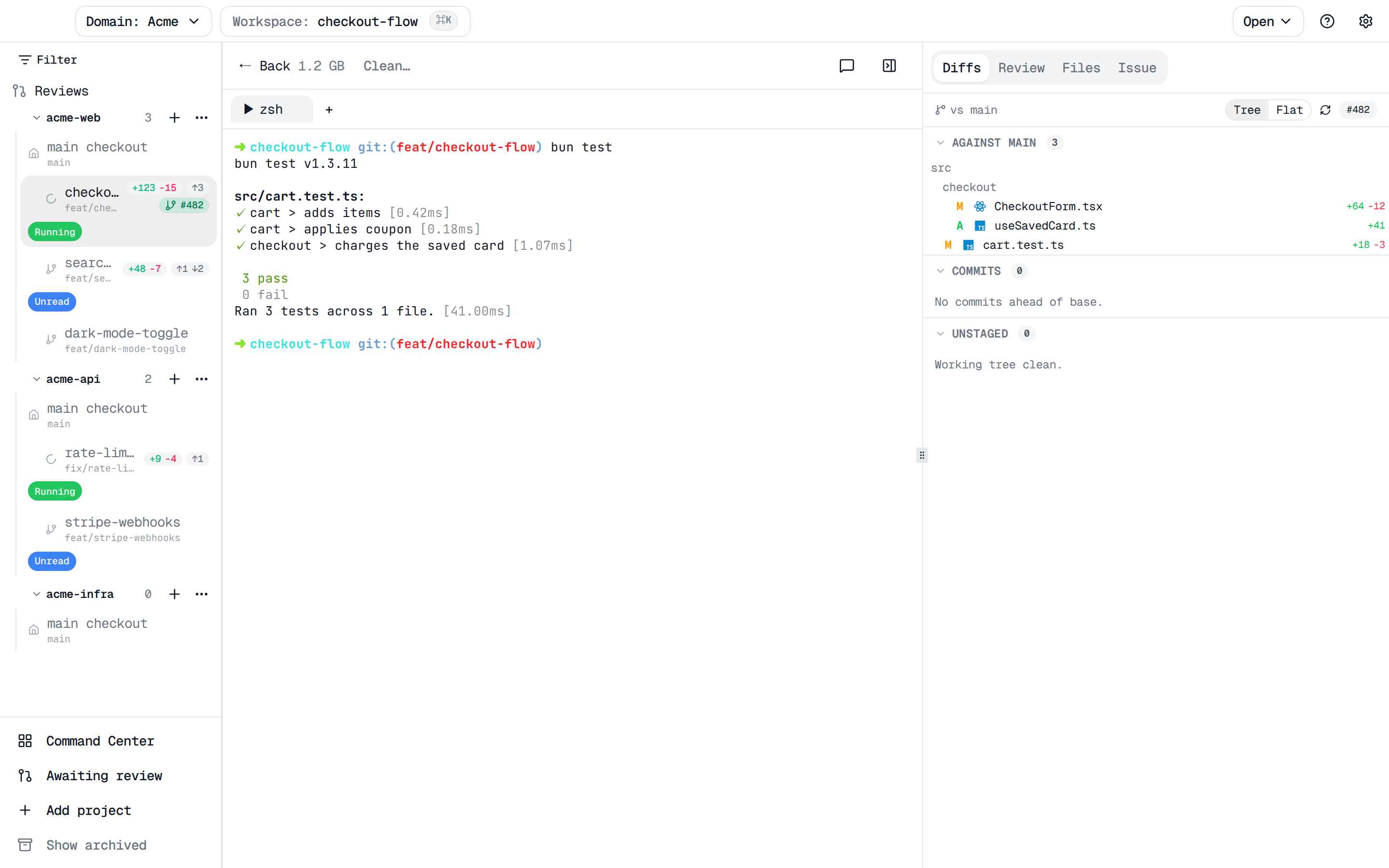
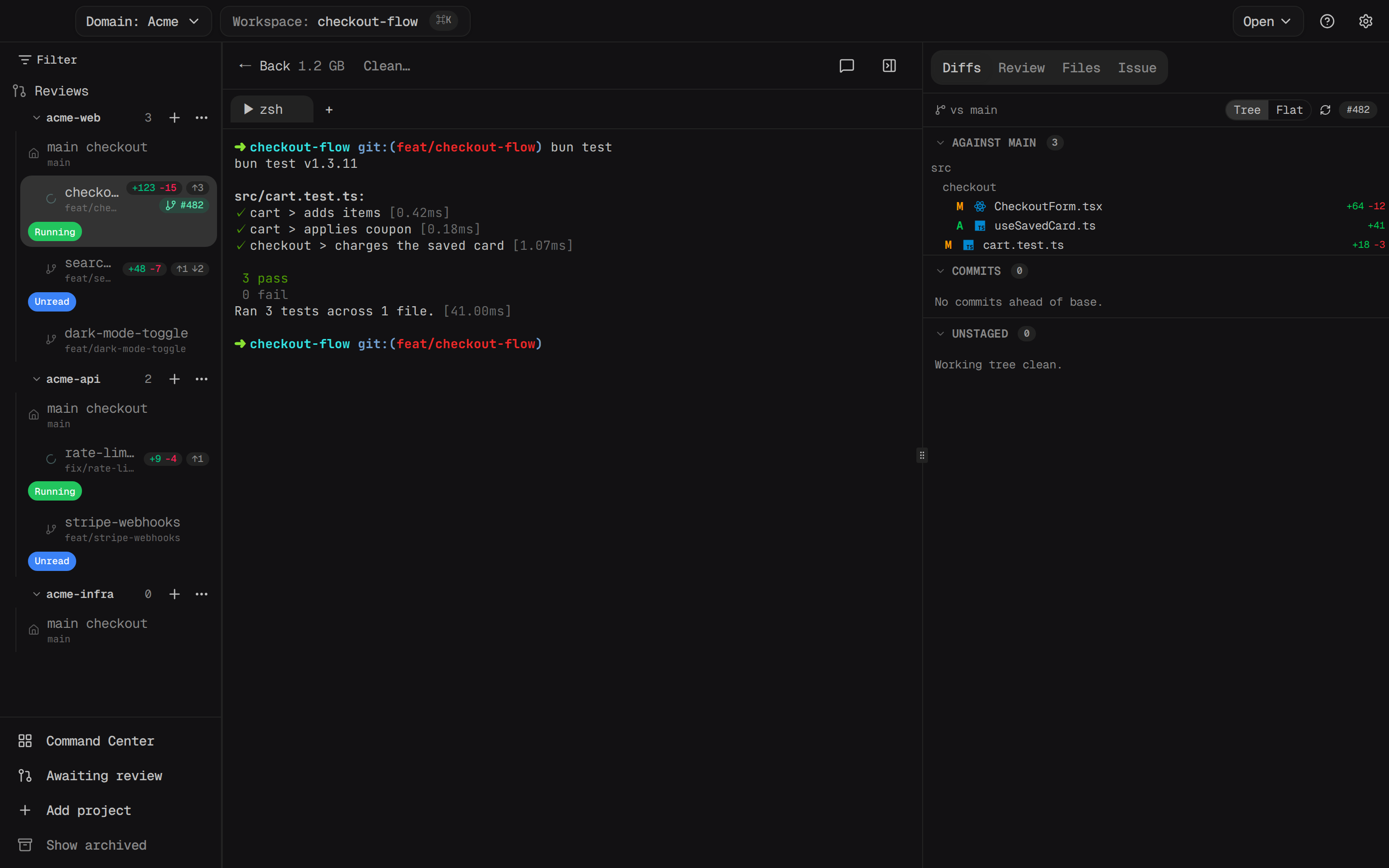
Press ⌘B (View → Toggle Sidebar) to collapse the project sidebar and give the pane area the full window — handy once you're heads-down in a terminal.
Find anything with the command palette
Press ⌘K to open the command palette. Every menu command is searchable there, and ⌘/ lists keyboard shortcuts.